
Exastro on Docker Compose - Offline
Introduction
Features
Pre-requisites
Deploy environment
The hardware requirements for the Container environment are as follows.Table 46 Hardware requirements(Minimum)¶ Resource type
Required resource
CPU
2 Cores (3.0 GHz, x86_64)
Memory
4GB
Storage (Container image size)
40GB
Table 47 Hardware requirements(Recommended)¶ Resource type
Required resource
CPU
4 Cores (3.0 GHz, x86_64)
Memory
16GB
Storage (Container image size)
120GB
Warning
The required resources for the minimum configuration are for Exastro IT Automation’s core functions. Additional resources will be required if you are planning to deploy external systems, such as GitLab and Ansible Automation Platform.Users will have to prepare an additional storage area if they wish to persist databases or files.The storage space is only an estimate and varies based on the user’s needs. Make sure to take that into account when securing storage space.Communication Protocols
Table 48 Communication Protocols¶ Use
Description
Source
Destination
Default
For Exastro service
For connecting to Exastro service
Client
Exastro system
30080/tcp
Exastro system (management)
For Exastro system management function
Client
Exastro system
30081/tcp
GitLab service(options)
For connecting to GitLab when linked with AAP
Ansible Automation Platform
Exastro system
40080/tcp
For GitLab service (option)
For monitoring GitLab service
Exastro system
Exastro system
40080/tcp
File acquisition
GitHub, Container images, Packages, etc.
Exastro system
Internet
443/tcp
Confirmed compatible Operation systems and container platforms
The following describes confirmed compatible operation systems as well as their versions.
Table 49 Tested environments¶ OS version
podman version
Docker Compose version
Docker version
Red Hat Enterprise Linux release 9.4 (Plow)
podman version 4.9.4-rhel
Docker Compose version v2.20.3
ー
Red Hat Enterprise Linux release 8.9 (Ootpa)
podman version 4.9.4-rhel
Docker Compose version v2.20.3
ー
AlmaLinux release 8.9 (Midnight Oncilla)
ー
ー
Docker version 26.1.3, build b72abbb
Applications
The user must be able to run curl and sudo commands.
Warning
Preparation
Service |
URL |
|---|---|
Exastro service |
|
Exastro management service |
|
GitLab service |
Service |
URL |
|---|---|
Exastro service |
|
Exastro management service |
|
GitLab service |
Service |
URL |
|---|---|
Exastro service |
|
Exastro management service |
|
GitLab service |
Tip
General flow
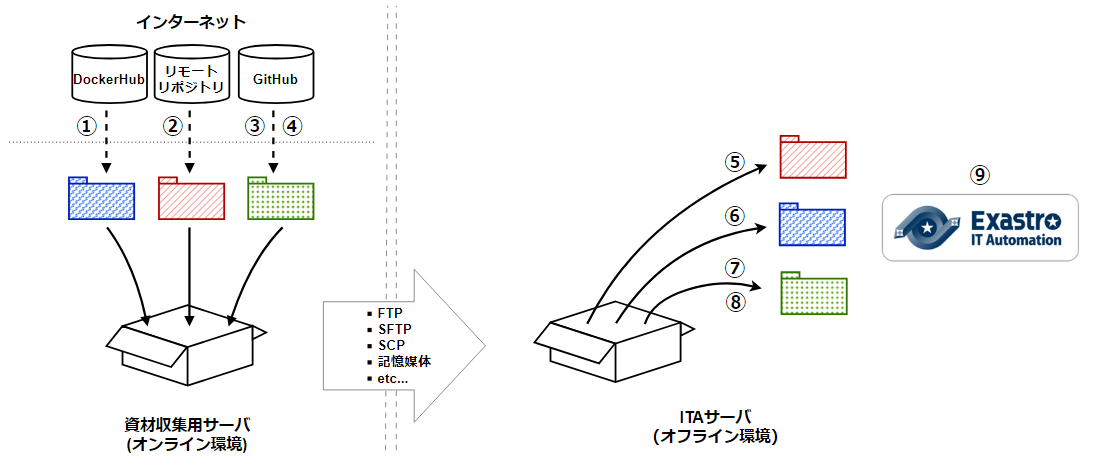
Online environment
Offline environment
Guide for Online environment(Environment that can connect to the internet)
①Upload container image
vi save.sh
#!/bin/bash

ITA_VERSION=$1
declare -A PF_VERSION=(
  ["x.x.x"]="x.x.x"
)
if [ ! -d $1 ]; then
  mkdir $ITA_VERSION
fi

readarray -t image_list < "./image.list"
for image in ${image_list[@]}
do
  image_fullname=$(echo ${image} | sed -e "s/#__ITA_VERSION__#/${ITA_VERSION}/" -e "s/#__PF_VERSION__#/${PF_VERSION[$ITA_VERSION]}/")
  image_name=$(basename ${image_fullname} | sed -e "s/:/-/")
  if [ ! -e ${ITA_VERSION}/${image_name}.tar.gz ]; then
    echo $image_fullname $image_name
    docker pull ${image_fullname}
    if [ $? -eq 0 ]; then
      docker save ${image_fullname} | gzip -c > ${ITA_VERSION}/${image_name}.tar.gz
    fi
  fi
done
vi image.list
docker.io/mariadb:10.9.8
docker.io/mariadb:10.11.4
docker.io/gitlab/gitlab-ce:15.11.13-ce.0
docker.io/mongo:6.0.7
docker.io/exastro/keycloak:#__PF_VERSION__#
docker.io/exastro/exastro-platform-auth:#__PF_VERSION__#
docker.io/exastro/exastro-platform-web:#__PF_VERSION__#
docker.io/exastro/exastro-platform-api:#__PF_VERSION__#
docker.io/exastro/exastro-platform-job:#__PF_VERSION__#
docker.io/exastro/exastro-platform-migration:#__PF_VERSION__#
docker.io/exastro/exastro-platform-migration:#__PF_VERSION__#
docker.io/exastro/exastro-it-automation-api-organization:#__ITA_VERSION__#
docker.io/exastro/exastro-it-automation-api-admin:#__ITA_VERSION__#
docker.io/exastro/exastro-it-automation-api-oase-receiver:#__ITA_VERSION__#
docker.io/exastro/exastro-it-automation-web-server:#__ITA_VERSION__#
docker.io/exastro/exastro-it-automation-by-ansible-agent:#__ITA_VERSION__#
docker.io/exastro/exastro-it-automation-by-ansible-execute:#__ITA_VERSION__#
docker.io/exastro/exastro-it-automation-by-ansible-execute-onpremises:#__ITA_VERSION__#
docker.io/exastro/exastro-it-automation-by-ansible-legacy-role-vars-listup:#__ITA_VERSION__#
docker.io/exastro/exastro-it-automation-by-ansible-legacy-vars-listup:#__ITA_VERSION__#
docker.io/exastro/exastro-it-automation-by-ansible-pioneer-vars-listup:#__ITA_VERSION__#
docker.io/exastro/exastro-it-automation-by-ansible-towermaster-sync:#__ITA_VERSION__#
docker.io/exastro/exastro-it-automation-by-collector:#__ITA_VERSION__#
docker.io/exastro/exastro-it-automation-by-conductor-synchronize:#__ITA_VERSION__#
docker.io/exastro/exastro-it-automation-by-conductor-regularly:#__ITA_VERSION__#
docker.io/exastro/exastro-it-automation-by-menu-create:#__ITA_VERSION__#
docker.io/exastro/exastro-it-automation-by-menu-export-import:#__ITA_VERSION__#
docker.io/exastro/exastro-it-automation-by-excel-export-import:#__ITA_VERSION__#
docker.io/exastro/exastro-it-automation-by-terraform-cloud-ep-execute:#__ITA_VERSION__#
docker.io/exastro/exastro-it-automation-by-terraform-cloud-ep-vars-listup:#__ITA_VERSION__#
docker.io/exastro/exastro-it-automation-by-terraform-cli-execute:#__ITA_VERSION__#
docker.io/exastro/exastro-it-automation-by-terraform-cli-vars-listup:#__ITA_VERSION__#
docker.io/exastro/exastro-it-automation-by-hostgroup-split:#__ITA_VERSION__#
docker.io/exastro/exastro-it-automation-by-cicd-for-iac:#__ITA_VERSION__#
docker.io/exastro/exastro-it-automation-by-oase-conclusion:#__ITA_VERSION__#
docker.io/exastro/exastro-it-automation-by-execinstance-dataautoclean:#__ITA_VERSION__#
docker.io/exastro/exastro-it-automation-by-file-autoclean:#__ITA_VERSION__#
docker.io/exastro/exastro-it-automation-migration:#__ITA_VERSION__#
docker.io/exastro/exastro-it-automation-by-ansible-agent:#__ITA_VERSION__#
If the user is not added to a group, and permission error might occur. The following is not required if done in advanced.
cat /etc/group | grep docker
#If the user is not added to any groups, run the following.
sudo usermod -aG docker ${USER}
cat /etc/group | grep docker
#Check that the user has been added to the group and reboot the server.
sudo reboot
After connecting to an online environment, run the following shell script and download the container image. The parameter specifies the version of ITA. This command can take several minutes before finishing(Depends on the server specs and the connection speeds).
sudo systemctl start docker
sudo chmod a+x save.sh
sh ./save.sh x.x.x
Run the following shell script and download the container image.The parameter specifies the version of ITA The parameter specifies the version of ITA. This command can take several minutes before finishing(Depends on the server specs and the connection speeds).
sudo chmod a+x save.sh
sh ./save.sh x.x.x
②Download RPM packages
#Add repository
sudo dnf config-manager --add-repo=https://download.docker.com/linux/centos/docker-ce.repo
#Confirm current OS version
cat /etc/os-release
#Specify version fetched above for  --releasever=x.x.
sudo dnf install -y --downloadonly --downloaddir=/tmp/docker-repo --installroot=/tmp/docker-installroot --releasever=x.x docker-ce docker-ce-cli containerd.io git container-selinux
sudo dnf install -y createrepo
sudo createrepo /tmp/docker-repo
#Confirm current OS version
cat /etc/os-release
#Specify version fetched above for  --releasever=x.x.
sudo dnf install -y --downloadonly --downloaddir=/tmp/podman-repo --installroot=/tmp/podman-installroot --releasever=x.x container-selinux git podman podman-docker
sudo dnf install -y createrepo
sudo createrepo /tmp/podman-repo
③Download docker-compose resources
curl -LO https://github.com/docker/compose/releases/download/v2.28.0/docker-compose-linux-x86_64
④Download Exastro resources
cd /tmp
curl -OL https://github.com/exastro-suite/exastro-docker-compose/archive/main.tar.gz
Transfer files
Container image:Free directoy
RPM Package: below /tmp
Exastro resource:Under normal user’s home directory
docker-compose-linux-x86_64:/usr/local/bin
Offline environment(Environment unable to connect to the internet)
⑤Install RPM packages
sudo touch /etc/yum.repos.d/docker-repo.repo
sudo vi /etc/yum.repos.d/docker-repo.repo

[docker-repo]
name=AlmaLinux-$releaserver - docker
baseurl=file:///tmp/docker-repo
enabled=1
gpgcheck=0
gpgkey=file:///etc/pki/rpm-gpg/RPM-GPG-KEY-AlmaLinux
sudo dnf -y --disablerepo=\* --enablerepo=docker-repo install docker-ce docker-ce-cli containerd.io git container-selinux
No available modular metadata for modular package 'perl-Mozilla-CA-20160104-7.module_el8.5.0+2812+ed912d05.noarch', it cannot be installed on the system
No available modular metadata for modular package 'perl-Net-SSLeay-1.88-2.module_el8.6.0+2811+fe6c84b0.x86_64', it cannot be installed on the system
Error: No available modular metadata for modular package
#If the target is perl-Mozilla-CA or perl-Net-SSLeay
cd /tmp/docker-repo
ls -l | grep -E "perl-Mozilla-CA|perl-Net-SSLeay"
sudo dnf -y --disablerepo=\* --enablerepo=docker-repo perl-Mozilla-CA-20160104-7.module_el8.5.0+2812+ed912d05.noarch.rmp perl-Net-SSLeay-1.88-2.module_el8.6.0+2811+fe6c84b0.x86_64.rpm
sudo dnf -y --disablerepo=\* --enablerepo=docker-repo install docker-ce docker-ce-cli containerd.io git container-selinux
sudo systemctl enable --now docker
cat /etc/group | grep docker
sudo usermod -aG docker ${USER}
#Confirm that the user name displays
cat /etc/group | grep docker
sudo  reboot
#Reconnect to the offline environment.
sudo touch /etc/yum.repos.d/podman-repo.repo
sudo vi /etc/yum.repos.d/podman-repo.repo

[podman-repo]
name=RedHat-$releaserver - podman
baseurl=file:///tmp/podman-repo
enabled=1
gpgcheck=0
gpgkey=file:///etc/pki/rpm-gpg/RPM-GPG-KEY-redhat-release
sudo dnf -y --disablerepo=\* --enablerepo=podman-repo install container-selinux git podman podman-docker
⑥Upload Container image
vi load.sh
ITA_VERSION=$1
declare -A PF_VERSION=(
  ["x.x.x"]="x.x.x"
)

readarray -t image_list < "./image.list"
for image in ${image_list[@]}
do
  image_fullname=$(echo ${image} | sed -e "s/#__ITA_VERSION__#/${ITA_VERSION}/" -e "s/#__PF_VERSION__#/${PF_VERSION[$ITA_VERSION]}/")
  image_name=$(basename ${image_fullname} | sed -e "s/:/-/")
  docker load < ${ITA_VERSION}/${image_name}.tar.gz
done

wait
vi image.list
docker.io/mariadb:10.9.8
docker.io/mariadb:10.11.4
docker.io/gitlab/gitlab-ce:15.11.13-ce.0
docker.io/mongo:6.0.7
docker.io/exastro/keycloak:#__PF_VERSION__#
docker.io/exastro/exastro-platform-auth:#__PF_VERSION__#
docker.io/exastro/exastro-platform-web:#__PF_VERSION__#
docker.io/exastro/exastro-platform-api:#__PF_VERSION__#
docker.io/exastro/exastro-platform-job:#__PF_VERSION__#
docker.io/exastro/exastro-platform-migration:#__PF_VERSION__#
docker.io/exastro/exastro-platform-migration:#__PF_VERSION__#
docker.io/exastro/exastro-it-automation-api-organization:#__ITA_VERSION__#
docker.io/exastro/exastro-it-automation-api-admin:#__ITA_VERSION__#
docker.io/exastro/exastro-it-automation-api-oase-receiver:#__ITA_VERSION__#
docker.io/exastro/exastro-it-automation-web-server:#__ITA_VERSION__#
docker.io/exastro/exastro-it-automation-by-ansible-agent:#__ITA_VERSION__#
docker.io/exastro/exastro-it-automation-by-ansible-execute:#__ITA_VERSION__#
docker.io/exastro/exastro-it-automation-by-ansible-execute-onpremises:#__ITA_VERSION__#
docker.io/exastro/exastro-it-automation-by-ansible-legacy-role-vars-listup:#__ITA_VERSION__#
docker.io/exastro/exastro-it-automation-by-ansible-legacy-vars-listup:#__ITA_VERSION__#
docker.io/exastro/exastro-it-automation-by-ansible-pioneer-vars-listup:#__ITA_VERSION__#
docker.io/exastro/exastro-it-automation-by-ansible-towermaster-sync:#__ITA_VERSION__#
docker.io/exastro/exastro-it-automation-by-collector:#__ITA_VERSION__#
docker.io/exastro/exastro-it-automation-by-conductor-synchronize:#__ITA_VERSION__#
docker.io/exastro/exastro-it-automation-by-conductor-regularly:#__ITA_VERSION__#
docker.io/exastro/exastro-it-automation-by-menu-create:#__ITA_VERSION__#
docker.io/exastro/exastro-it-automation-by-menu-export-import:#__ITA_VERSION__#
docker.io/exastro/exastro-it-automation-by-excel-export-import:#__ITA_VERSION__#
docker.io/exastro/exastro-it-automation-by-terraform-cloud-ep-execute:#__ITA_VERSION__#
docker.io/exastro/exastro-it-automation-by-terraform-cloud-ep-vars-listup:#__ITA_VERSION__#
docker.io/exastro/exastro-it-automation-by-terraform-cli-execute:#__ITA_VERSION__#
docker.io/exastro/exastro-it-automation-by-terraform-cli-vars-listup:#__ITA_VERSION__#
docker.io/exastro/exastro-it-automation-by-hostgroup-split:#__ITA_VERSION__#
docker.io/exastro/exastro-it-automation-by-cicd-for-iac:#__ITA_VERSION__#
docker.io/exastro/exastro-it-automation-by-oase-conclusion:#__ITA_VERSION__#
docker.io/exastro/exastro-it-automation-by-execinstance-dataautoclean:#__ITA_VERSION__#
docker.io/exastro/exastro-it-automation-by-file-autoclean:#__ITA_VERSION__#
docker.io/exastro/exastro-it-automation-migration:#__ITA_VERSION__#
docker.io/exastro/exastro-it-automation-by-ansible-agent:#__ITA_VERSION__#
⑦Install docker-compose resources
cd /usr/local/bin
sudo mv docker-compose-linux-x86_64 docker-compose
sudo chmod a+x /usr/local/bin/docker-compose
sudo ln -s /usr/local/bin/docker-compose /usr/bin/docker-compose
⑧Install Exastro resources
tar -zxvf main.tar.gz
sudo mv exastro-docker-compose-main exastro-docker-compose
1sudo vi /etc/selinux/config
# This file controls the state of SELinux on the system.
# SELINUX= can take one of these three values:
#     enforcing - SELinux security policy is enforced.
#     permissive - SELinux prints warnings instead of enforcing.
#     disabled - No SELinux policy is loaded.
# See also:
# https://docs.fedoraproject.org/en-US/quick-docs/getting-started-with-selinux/#getting-started-with-selinux-selinux-states-and-modes
#
# NOTE: In earlier Fedora kernel buil, SELINUX=disabled would also
# fully disable SELinux during boot. If you need a system with SELinux
# fully disabled instead of SELinux running with no policy loaded, you
# need to pass selinux=0 to the kernel command line. You can use grubby
# to persistently set the bootloader to boot with selinux=0:
#
#    grubby --update-kernel ALL --args selinux=0
#
# To revert back to SELinux enabled:
#
#    grubby --update-kernel ALL --remove-args selinux
#
SELINUX=permissive
# SELINUXTYPE= can take one of these three values:
#     targeted - Targeted processes are protected,
#     minimum - Modification of targeted policy. Only selected processes are protected.
#     mls - Multi Level Security protection.
SELINUXTYPE=targeted
sudo reboot
#Reconnect to the offline environment
sed -i 's/sudo dnf config-manager/#sudo dnf config-manager/' setup.sh
cd ~/exastro-docker-compose && sh ./setup.sh install
Deploy OASE container ? (y/n) [default: y]:
Deploy Gitlab containser? (y/n) [default: n]:
Generate all password and token automatically? (y/n) [default: y]:
#Input 30800 for the port number if the OS is Red Hat Enterprise Linux. For everything else, input 80.
Input the Exastro service URL: https://ita.example.com:30080
#Input 30801 for the port number if the OS is Red Hat Enterprise Linux. For everything else, input 81.
Input the Exastro management URL: https://ita.example.com:30081
Generate self-signed SSL certificate? (y/n) [default: y]:
#Specify the server certificate file path for the certificate file path and the secret key file's file path for the private-key file path.
Input path to your SSL certificate file.
certificate file path:
private-key file path:
#Input 30800 for the port number if the OS is Red Hat Enterprise Linux. For everything else, input 80.
Input the Exastro service URL: http://ita.example.com:30080
#Input 30801 for the port number if the OS is Red Hat Enterprise Linux. For everything else, input 81.
Input the Exastro management URL: http://ita.example.com:30081
#Specify 40080 for the port number.
Input the external URL of Gitlab container  [default: (nothing)]:
System parametes are bellow.

System administrator password:    ********
Database password:                ********
OASE deployment                   true
MongoDB password                  ********
Service URL:                      http://ita.example.com:30080
Manegement URL:                   http://ita.example.com:30081
Docker GID:                       985
Docker Socket path:               /var/run/docker.sock
GitLab deployment:                false

Generate .env file with these settings? (y/n) [default: n]
sudo reboot
cd ~/exastro-docker-compose && sh ./setup.sh install
#Press enter without inputting anything.
Regenerate .env file? (y/n) [default: n]:
#Input y.
Deploy Exastro containers now? (y/n) [default: n]:
docker ps
1sudo vi /etc/selinux/config
# This file controls the state of SELinux on the system.
# SELINUX= can take one of these three values:
#     enforcing - SELinux security policy is enforced.
#     permissive - SELinux prints warnings instead of enforcing.
#     disabled - No SELinux policy is loaded.
# See also:
# https://docs.fedoraproject.org/en-US/quick-docs/getting-started-with-selinux/#getting-started-with-selinux-selinux-states-and-modes
#
# NOTE: In earlier Fedora kernel builds, SELINUX=disabled would also
# fully disable SELinux during boot. If you need a system with SELinux
# fully disabled instead of SELinux running with no policy loaded, you
# need to pass selinux=0 to the kernel command line. You can use grubby
# to persistently set the bootloader to boot with selinux=0:
#
#    grubby --update-kernel ALL --args selinux=0
#
# To revert back to SELinux enabled:
#
#    grubby --update-kernel ALL --remove-args selinux
#
SELINUX=permissive
# SELINUXTYPE= can take one of these three values:
#     targeted - Targeted processes are protected,
#     minimum - Modification of targeted policy. Only selected processes are protected.
#     mls - Multi Level Security protection.
SELINUXTYPE=targeted
sudo reboot
#Reconnect to the offline environment
cd ~/exastro-docker-compose && sh ./setup.sh install
Deploy OASE container URL? (y/n) [default: y]:
Deploy Gitlab containser? (y/n) [default: n]:
Generate all password and token automatically? (y/n) [default: y]:
#Input 30800 for the port number if the OS is Red Hat Enterprise Linux. For everything else, input 80.
Input the Exastro service URL: https://ita.example.com:30080
#Input 30801 for the port number if the OS is Red Hat Enterprise Linux. For everything else, input 81.
Input the Exastro management URL: https://ita.example.com:30081
Generate self-signed SSL certificate? (y/n) [default: y]:
#Specify the server certificate file path for the certificate file path and the secret key file's file path for the private-key file path.
Input path to your SSL certificate file.
certificate file path:
private-key file path:
#Input 30800 for the port number if the OS is Red Hat Enterprise Linux. For everything else, input 80.
Input the Exastro service URL: http://ita.example.com:30080
#Input 30801 for the port number if the OS is Red Hat Enterprise Linux. For everything else, input 81.
Input the Exastro management URL: http://ita.example.com:30081
#Specify 40080 for the port number.
Input the external URL of Gitlab container  [default: (nothing)]:
System parametes are bellow.

System administrator password:    ********
Database password:                 ********
OASE deployment                   true
MongoDB password                  ********
Service URL:                      http://ita.example.com:30080
Manegement URL:                   http://ita.example.com:30081
Docker GID:                       1000
Docker Socket path:               /run/user/1000/podman/podman.sock
GitLab deployment:                false

      Generate .env file with these settings? (y/n) [default: n]


   | Reboot server

   .. code-block:: shell
      :caption: Command

      sudo reboot


   .. code-block:: shell
      :caption: Command

      cd ~/exastro-docker-compose && sh ./setup.sh install


   .. code-block:: shell
      :caption: Confirm that .env has been regenerated

      #Press enter without inputting anything.
      Regenerate .env file? (y/n) [default: n]:

   .. code-block:: shell
      :caption: Exastro container deploy confirmation

      #Input y
      Deploy Exastro containers now? (y/n) [default: n]:


   | Check that the Container STATUS says UP.
.. code-block:: shell
   :caption: Command

   podman ps
Login
1cd ~/exastro-docker-compose
2cat .env
1### Initial account information for creating system administrators
2#### Specify the username and password
3# SYSTEM_ADMIN=<Username>
4SYSTEM_ADMIN_PASSWORD=<Password>
Create Organization
Tip